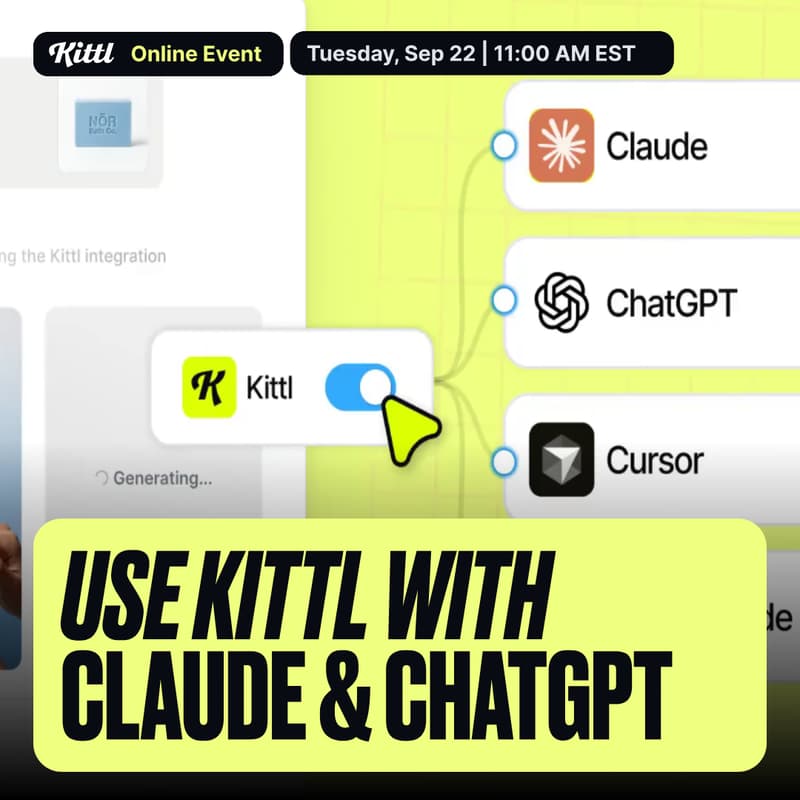

Learn how to connect Kittl with your favorite AI chat
Kittl MCP has landed. We'll show you how to set it up, and just how far one idea can go.
Kittl MCP connects Kittl to the AI tools you already use, like Claude or ChatGPT. Ask for a design, image or video in plain language from inside that tool, and Kittl builds it and sends it back. Simple.
Follow along as Kittl's Tech Lead, Jonny, walks you through connecting Kittl to Claude, ChatGPT, Cursor, or Claude Code.
What we'll cover
Connecting Kittl to your AI tool in simple steps
How to ask for product shots, mockups, and videos in your chat
Running one idea through a full workflow: Kittl, Printify, and Pinterest
How to pick up edits back in Kittl
FAQ
Who is this for?
Anyone already working in Claude, ChatGPT, or Cursor who wants Kittl's output without switching tools.
What is MCP?
MCP is the connection that lets AI tools like Claude or ChatGPT talk directly to Kittl. Once connected, you can ask for a design from inside that tool, and Kittl builds it, no switching tabs.
How do I follow along?
Have an MCP client you already use open and ready. If you'd like to connect before we start, add the Kittl MCP URL (mcp.kittl.com/mcp) in your tool's connector settings and sign in with your Kittl account. Setup takes about a minute, but we'll also show you how to do this live.
Will this be recorded?
Yes. Even if you can't make it live, RSVP anyway to get the replay in your inbox.